What a Tesla token is, and how to get one safely
Every Tesla third-party tool asks for a token. Understanding what it is, why it is not your password, and how to revoke it matters more than following the clicks.
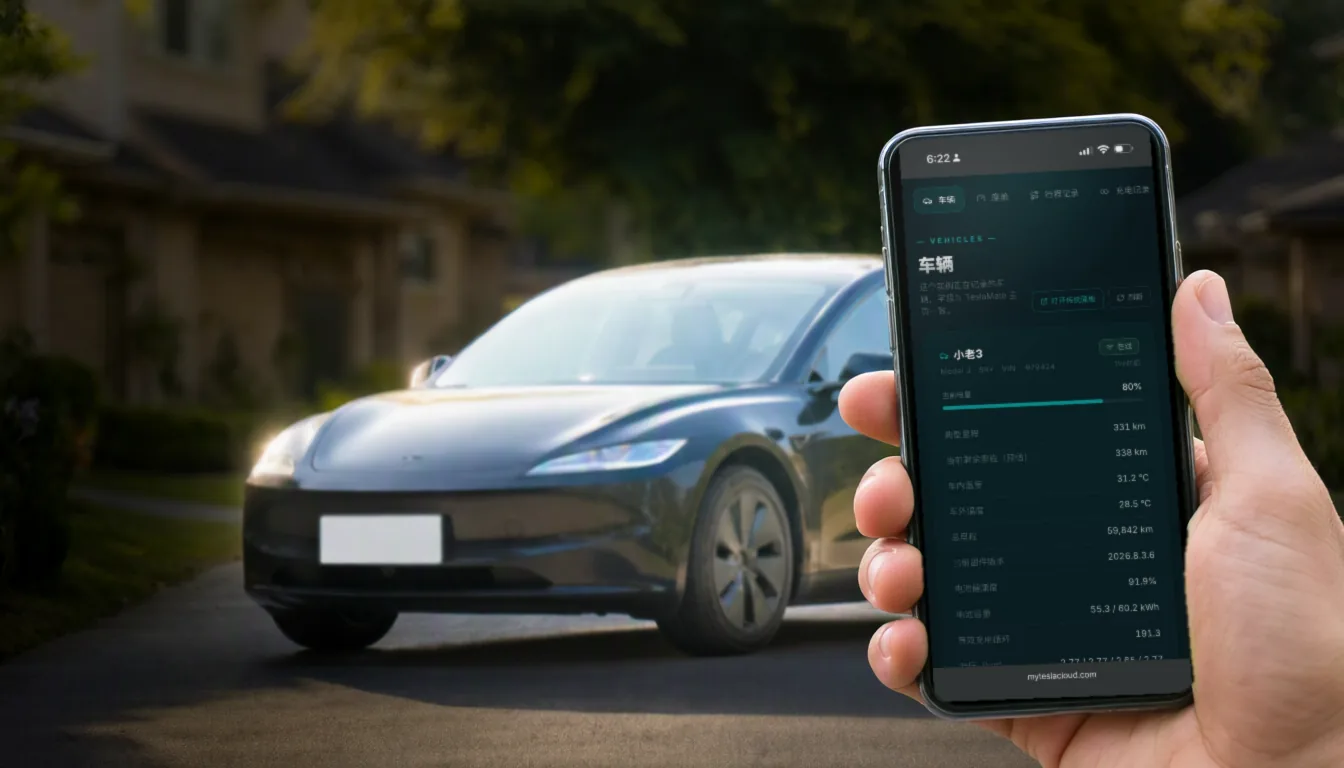
Connecting any Tesla third-party service eventually hits the same step: paste in a token and a refresh token. A lot of people hesitate here — is handing this over safe?
That hesitation is correct, and it is worth three minutes to resolve properly.
What a token actually is
A token is a pass issued by Tesla’s official OAuth flow. Three properties matter:
- It is not your password. Whoever holds it cannot sign into your Tesla account, cannot change your password, and cannot see your payment details;
- It expires. Access tokens are short-lived and must be renewed using the refresh token;
- You can kill it at any moment. Change your Tesla account password and every token issued before that instant stops working — authorisation revoked, immediately.
This is why a legitimate service never asks for your Tesla account password. MyTeslaCloud stores encrypted tokens only, never your credentials — and the off switch stays with you: change your password and the connection is gone.
Method one: generate it in a browser (recommended)
The least painful route. Nothing to install, but it is desktop-browser only — it will not work on a phone:
- On a computer, open token.fsdzy.net;
- Click launch tesla_auth in step 1 and sign in on Tesla’s own login page;
- Once signed in, click read Tesla Auth token in step 2 — the page produces your token and refresh token;
- Copy each value into the matching field on the Token verification page in your MyTeslaCloud dashboard, then submit.
Do not swap the two fields. The single most common cause of a failed binding is the token and refresh token being pasted the wrong way round — and the error will only say "invalid token", never which one.
Method two: the auth app (fallback)
If the browser route is unavailable, use an auth utility. The Token verification page in your dashboard links builds for each platform: Auth app for Tesla on iOS, plus Windows, macOS Intel and macOS Apple Silicon desktop versions.
- Open the app and pick the right region first — Global for most owners, China for mainland-China accounts;
- Sign in with your Tesla credentials (again, on Tesla’s own login page);
- The app produces the token and refresh token;
- Paste both into the matching fields in your dashboard and submit.
The region has to match your account. Mainland-China Tesla accounts authenticate against a separate domain, so choosing the wrong region simply fails to log in. That is not an account problem — just pick the other one.
If binding fails, work through this in order
| Symptom | Cause | Fix |
|---|---|---|
| "Invalid token" | The two fields are swapped | Swap token and refresh token, resubmit |
| Stuck connecting / gateway timeout | Tesla’s auth servers are slow | Retry patiently — usually clears in minutes |
| Page says Not Found | Opened in private mode or a pasted tab | Navigate from the homepage instead |
| Vehicle name never appears | Verification was interrupted | Sign out, then run token verification again |
| Login itself fails | Wrong region selected | Mainland-China accounts must pick China |
Tesla’s verification servers genuinely are slow sometimes, and one or two failures are common. Try again a few times before assuming you did something wrong — after checking you did not swap the fields.